Driver Set Up in Pedigree

Driver Set Up in Pedigree
Setting up a User/Driver
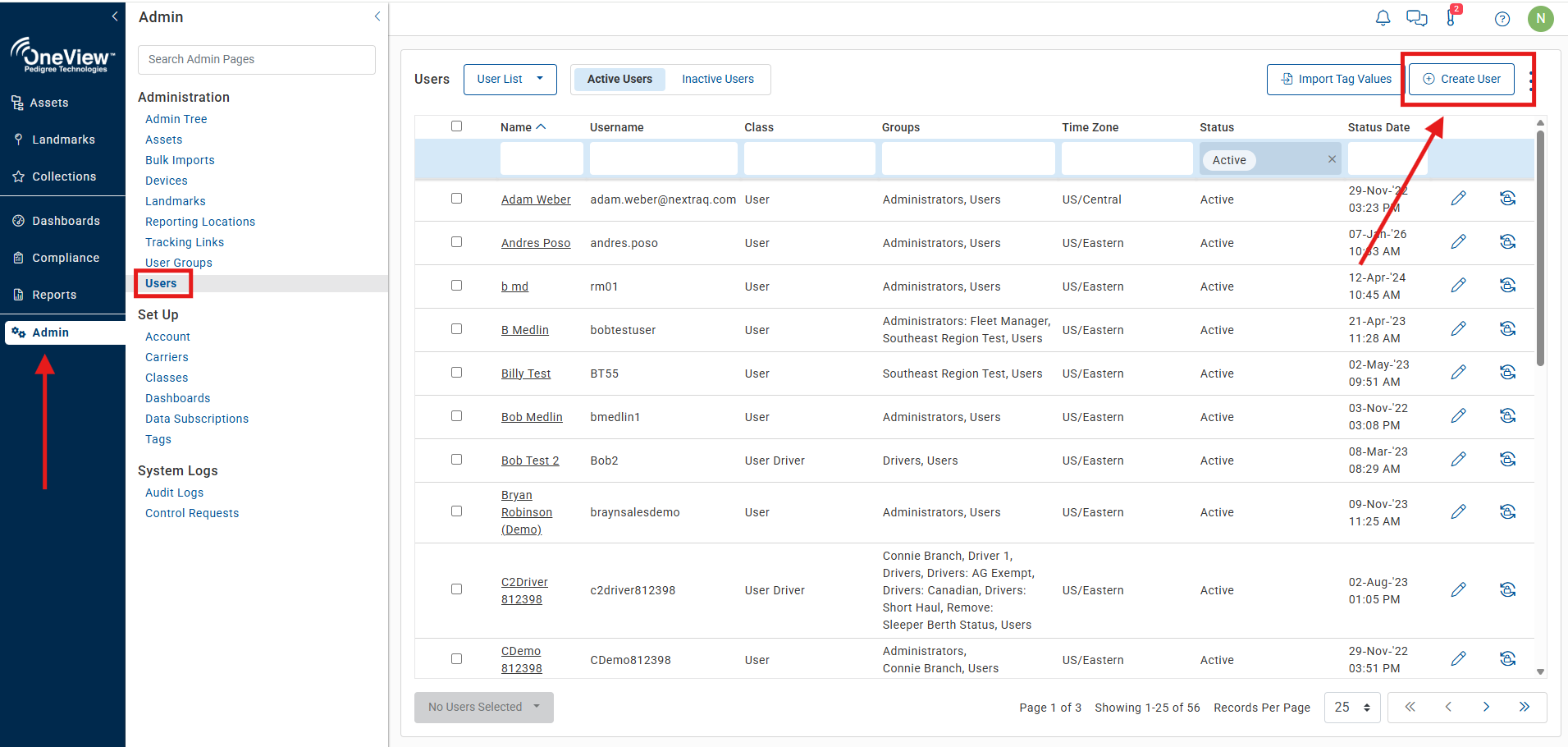
1. Click on the Admin tab > Select Users> Click Create New User
2. The Create New User screen will display. Be sure to select Driver under Role. All the fields with asterisks next to them are required.
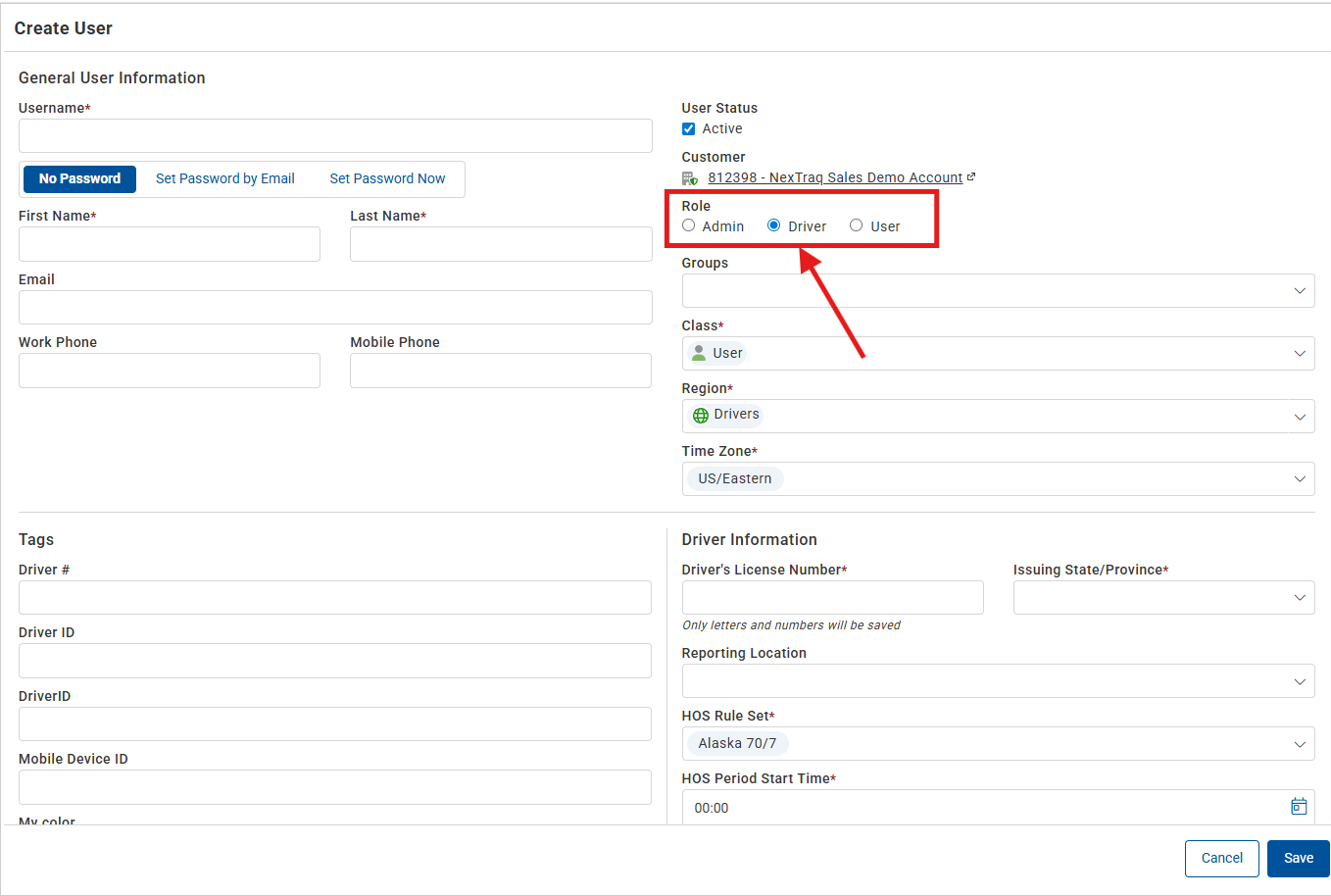
Username: (required field) Place the user/drivers username here. This will be the user/driver login. | Note: The username must be unique to the system globally. If the username you choose is already taken anywhere else in the system, you'll be asked to choose a different username. |
Set Password by Email: the system will send the user an email (to the address you add in the email field) for setting their own password. | Note: This email will be active for 1 week only. |
Set Password Now: (optional field) Enter the password the user/driver will be using to log into the OneView platform or the POV driver app. | Note: If you have multiple drivers each driver should have a unique password. |
First Name: (required field) Type in the first name as it should display in the system. | |
Last Name: (required field) Type in the last name as it should display in the system. | |
Email: (optional) Enter an email address for this user. If your username is also an email address, this field will automatically populate. | Note: It is recommended that you enter an email address if you are setting up a driver so they can use the Password Reset option to receive an email password reset link. |
Work Phone: (optional) Place the work phone number here if it was provided. | Note: When entering a phone number enter it in the following format 7015551212. Do not use spaces or dashes. |
Mobile Phone: (optional) Place the cell phone number here if it was provided. This is the phone number that the user will be notified via text message alerts. | Note: If the mobile phone number is not entered, the user will not receive text messages for alerts set up in your platform. |
Provider: (optional) Select the cell phone provider/carrier from the drop-down list. | Note: This is required for notifying users via text message alerts. |
User Status: Place a checkmark in this box to make the user active in the system. Remove the checkmark in this box to make the user inactive in the system. | |
Customer: This field shows the Companies name the User/Driver will be added to. | |
Role: Check which type of user this is. If you select the Driver Role, a Driver Information section will display (see below). | |
Groups: Choose which groups apply to this user. | |
Actor Class: (required field) Type or choose from the drop-down list, select the proper user type. Example: User, User Driver, etc. | Note: User driver will be a driver who also has use of the admin side of the platform |
Region: Select the region folder to add this user - i.e. Driver folder. You can choose any region in your asset tree. | |
Time Zone: Set the home office time zone for the user/driver. | Note: This will establish the time zone for the driver's log book. |
Tags: Scroll down to view all tag fields and add any that are necessary. | |
Driver Information: If you set the user Role as Driver, you must complete the Driver Information section. | Drivers License: (required) Enter the driver's license number in just letters and numbers, no dashes. Drivers License Issuing State: From the drop down, choose the license's state of issue. Reporting Location: Choose the driver's home terminal reporting location from a drop-down list or create a new reporting location with the New Reporting Location button. Driving Rule: Select the HOS driving rule appropriate for the driver. Consult your compliance officer with questions. Period Start Time (HH:MM:SS): This should be set to 00:00:00 unless the driver has a known different period start time. Consult your compliance officer with questions. ELD Exempt Option: Check this box to make/signify this user is ELD Exempt. By checking the box, a reason field will appear. Enter a reason (required). Consult your compliance officer with questions. 24-hour Reset Option: Some drivers qualify for a 24-hour reset option vs. the standard 34-hour reset. Check the box if the driver qualifies for the 24-hour reset. Consult your compliance officer with questions. Waiting at Wellsite Option: Check the box if the driver qualifies for the Waiting at Wellsite 5th line duty status. Consult your compliance officer with questions. POV Screen Lock Enabled: Check the box if you want the moving lock screen to be enabled. If enabled, the moving lock screen will prevent the user form using the mobile device (tablet or Smartphone) to do anything while the vehicle is moving. The exception is that if turn-by-turn directions were started before the vehicle was in motion they can continue to be used. Note: Please be aware that disabling the POV lock screen will allow drivers to use the tablet while the vehicle is moving. Use of a phone while a commercial vehicle is moving is prohibited by the FMCSA. 16 Hour Big Day Option: Check this box if a driver qualifies for the 16-hour exception. Consult your compliance officer with questions Personal Use of CMV Option: Check this box to enable this status option, allowing the driver to choose this status on their tablet. Consult your compliance officer with questions. Yard Move Option: Check this box to enable the yard move option, allowing the driver to choose this status on their tablet. Consult your compliance officer with questions. Allow California Meal Break Option: Check this box to enable the California Employee Meal Break options on the driver's tablet. Consult your compliance officer with questions. (Most companies will not see this option.) Required Pre-trip Inspection: Check this box to enable OneView to create missing pre-trip inspection violation events when drivers miss a pre-trip inspection on their tractor or trailer. Required Post-trip Inspection: Check this box to enable OneView to create missing post-trip inspection violation events when drivers miss a post-trip inspection on their tractor or trailer. |
